How to record Zoom meeting & essential tips for recording
How to record Zoom meetings as a host or as a participant. Tips for recording Zoom effectively like a pro and how to share your records.
Alvin Kantapura
Chief Executive Officer
ผลผลิต
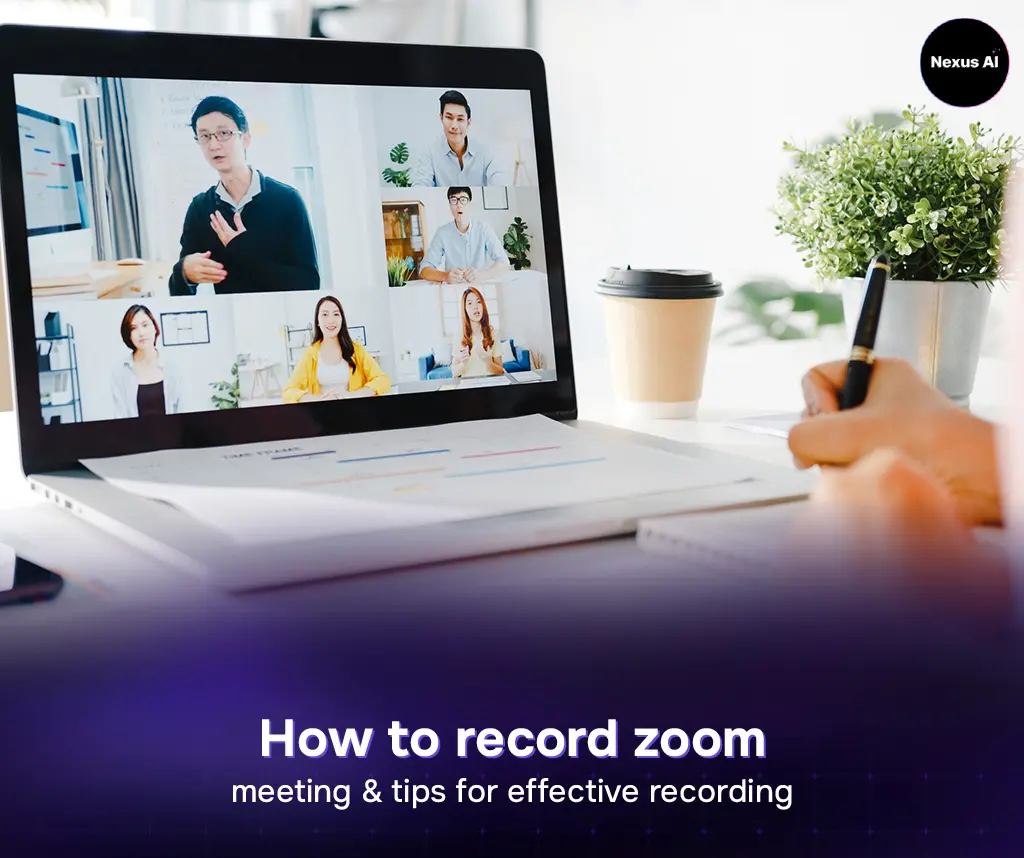
How to record zoom meeting & tips for effective recording
In a world of remote collaboration, recording Zoom meetings has become a vital skill for maintaining clear communication. Whether for professional documentation or preserving personal memories, learning how to record Zoom meetings ensures that important details aren't lost to memory.
This guide explores the essential steps for how to record zoom meetings as hosts and participants to capture high-quality sessions, offering practical tips on setup and sharing to help you turn every meeting into a lasting, actionable resource for your team.
Key Takeaways
Recording ensures 100% accuracy, acting as a perfect minute-of-meeting that eliminates the need for manual note-taking.
Effective recordings require a hardware audit, a quiet environment, and professional etiquette to ensure audio and video clarity.
Tools like Nexus AI can transcribe and centralize recordings into searchable projects, turning videos into collective team intelligence.
Why recording Zoom meeting is important?
Recording your sessions is the best way to bridge the gap between real-time conversation and long-term documentation. While Zoom allows for meaningful human connection, those insights can easily be forgotten once the call ends. Whether it is a professional webinar or a personal celebration, having a digital file allows you to preserve these moments indefinitely.
By learning how to record Zoom meeting, you can gain several key advantages for your workflow and personal life:
Accuracy in Documentation: You no longer need to rely on manual note-taking. A recording captures every word and visual detail, acting as a perfect minute of meeting that you can refer back to at any time.
Support for Absent Members: It is the perfect way to keep colleagues or friends informed if they were unable to join the live session.
Enhanced Training and Review: Recordings serve as a permanent resource for training new staff or revisiting complex instructions at your own pace.
Easy Content Creation: Once you know how to record on Zoom meetings, you can easily repurpose your sessions into social media clips, tutorials, or archives.
How to record Zoom meeting as a host?

Being the host gives you the primary authority to manage how a session is documented. Understanding how to record a Zoom meeting as the host is a fundamental skill that ensures every important discussion is captured for future use. Whether you are leading a team sync or hosting a global webinar, the process is designed to be user-friendly across all platforms. To ensure a high-quality result, follow this structured workflow:
Set Up Your Gear: Before you click start, verify your hardware. On a laptop or mac, Zoom provides a preview window to test your microphone and camera. Ensuring your audio is crisp is the first step in learning how to record meetings in Zoom effectively.
Start the Capture: Once your participants have joined, locate the "Record" button on the navigation bar at the bottom of the screen. As the host, you can choose between recording to your local device or the cloud (for paid subscribers).
Capture Visuals: If you are presenting slides or a demo, you can screen record a zoom meeting by using the "Share Screen" feature. The recording will automatically include whatever is being shared on your screen.
Manage the Session: You can pause or stop the recording at any time using the controls at the top or bottom of your screen.
Save and Convert: After the meeting ends, Zoom will process the file. If you are learning how to record Zoom meetings as a host on a free account, you’ll need to select a local folder to save the MP4 file. Paid users can opt for cloud storage for easier sharing.
how to record Zoom meeting as a participant?

Recording a session when you aren't the one in charge requires a slightly different approach. While the platform is built for transparency, knowing how to record Zoom meetings as a participant is essential for students, researchers, or employees who need to reference the discussion later. The process ensures that everyone is aware of the recording, maintaining professional etiquette.
Verify Your Setup: Before the meeting hits a critical point, check your settings. Whether you are learning how to record Zoom meetings on a laptop or a mobile device, click the small arrows next to the "Mute" and "Stop Video" icons to ensure your playback and input devices are correctly selected.
Request Permission: This is the most important step. When you click the "Record" button on the bottom toolbar, a pop-up will appear. You must click "Send Request" to ask the host for permission. The host will see a notification to either approve or decline. Once they grant access, you can officially begin to record on zoom meetings.
Manage the Capture: After permission is granted, a recording indicator will appear in the corner of your screen. You can pause the process if the conversation shifts to off-the-record topics and resume when necessary.
Finalize the File: When you are finished, click "Stop Recording." It is important to stay in the meeting until it ends or the host closes the session, as Zoom will only begin converting the file to an MP4 once the call is complete.
Tips to do Zoom meeting recordings effectively?
High-quality recordings require more than just clicking a button; preparation is key. To ensure your video is professional and clear, follow these essential tips for how to record Zoom meeting:
Optimize Your Setup: Audit your hardware by closing background apps to boost performance. Clean your webcam and ensure your microphone is positioned to capture clear audio without feedback.
Control Your Environment: Choose a quiet, well-lit space. Minimize background noise and visual distractions to keep the focus on the speaker.
Practice Professional Etiquette: Always notify participants before you start to record on zoom meetings. This builds trust and ensures everyone is comfortable being captured.
Record with Purpose: Use the pause button during breaks to avoid "fluff." Being selective helps when learning how to record Zoom meetings on phone or ipad, as it keeps file sizes manageable and easy to review. Reviewing these sessions is an excellent way to critique and improve your sales skills by observing your interactions with clients.
How can I share my recorded Zoom meeting?

Distributing your captured sessions is a straightforward process once you know where the files are stored. Whether you are learning how to record Zoom meeting on laptop or a mobile device, follow these steps to locate and share your content:
Via Zoom Web Account
Access your profile through the Zoom web portal.
Navigate to the “My Account” section in the upper-right corner.
Select “Recordings” from the sidebar menu to view your history.
Filter by the “Cloud Recordings” or “Computer recordings” tab to find the specific meeting you wish to share.
Via Zoom Desktop App
Launch the Zoom application on your computer and sign in.
From the main dashboard, look for the “Open Recordings” button in the lower-right area.
A management window will appear, allowing you to browse through your “Cloud” or “Local” files instantly.
Locating Local Files on Your Device
Open your system's file explorer and head to the “Documents” directory.
Open the folder named “Zoom”.
Find the specific subfolder organized by the date and time of your session to access the MP4 video file.
For a more professional sharing experience after you record a Zoom meeting, try Nexus AI. This platform allows you to create dedicated Projects where you can host your meeting recordings and transcripts. You can easily share these projects with specific individuals or everyone in your company, ensuring that the right people have instant access to the collective knowledge shared during your meetings.
FAQ about Recording Zoom Meeting
1. Why can't I record on the Zoom app?
There are several common reasons why the recording feature might be unavailable
Host Restrictions: If you are a participant, the host may have disabled the recording feature or hasn't granted you permission yet.
Device Limitations: If you are using a mobile device (iOS or Android), local recording is not supported; you can only record to the Cloud if you have a paid subscription.
Storage Space: Your local hard drive or Zoom Cloud storage might be full, preventing new files from being saved.
Account Settings: The recording function might be toggled "Off" in your Zoom web portal settings.
2. How do you record a Zoom video of yourself?
Recording a solo session is a great way to create tutorials or practice presentations
Start a Solo Meeting: Open Zoom and click "New Meeting" without inviting any other participants.
Check Audio/Video: Ensure your camera and microphone are active and you are well-lit.
Hit Record: Click the "Record" button on the bottom toolbar. You can share your screen if you want to record a presentation alongside your video.
End to Save: Once finished, click "End Meeting for All." Zoom will automatically convert the session into an MP4 file on your computer or cloud.
How to record Zoom meeting and maximize productivity by Nexus AI
Mastering how to record Zoom meetings is essential for modern productivity, turning fleeting conversations into permanent, searchable assets. By following a structured workflow from hardware checks and host permissions to utilizing logical sharing methods. You ensure that your team remains aligned and well-informed. Incorporating these professional habits, combined with tools like Nexus AI for smarter documentation, allows you to manage your digital meetings with confidence, precision, and ease.
Nexus AI revolutionizes how you handle meeting data. Using an advanced generative AI engine can instantly transcribe your Zoom audio, turning recordings into searchable text. By creating dedicated Projects, you can centralize your transcripts and video files, making it easier to brainstorm ideas or extract summaries. Nexus AI ensures that the collective intelligence of your team is organized and always accessible, serving as one of the most powerful meeting management tools available today.